If you've ever set up an ad campaign — picking your audience, choosing the format, scheduling it, reviewing results — you already know what a "flow" is. You've just been doing it by hand, across a dozen different tabs.
Flow Editor puts all of that in one place. Each step becomes a box. You connect the boxes. Done.
It sounds simple because it actually is. This guide will walk you through it step by step — from the first time you open Flow Editor to getting your first flow running. No coding. No technical background required.
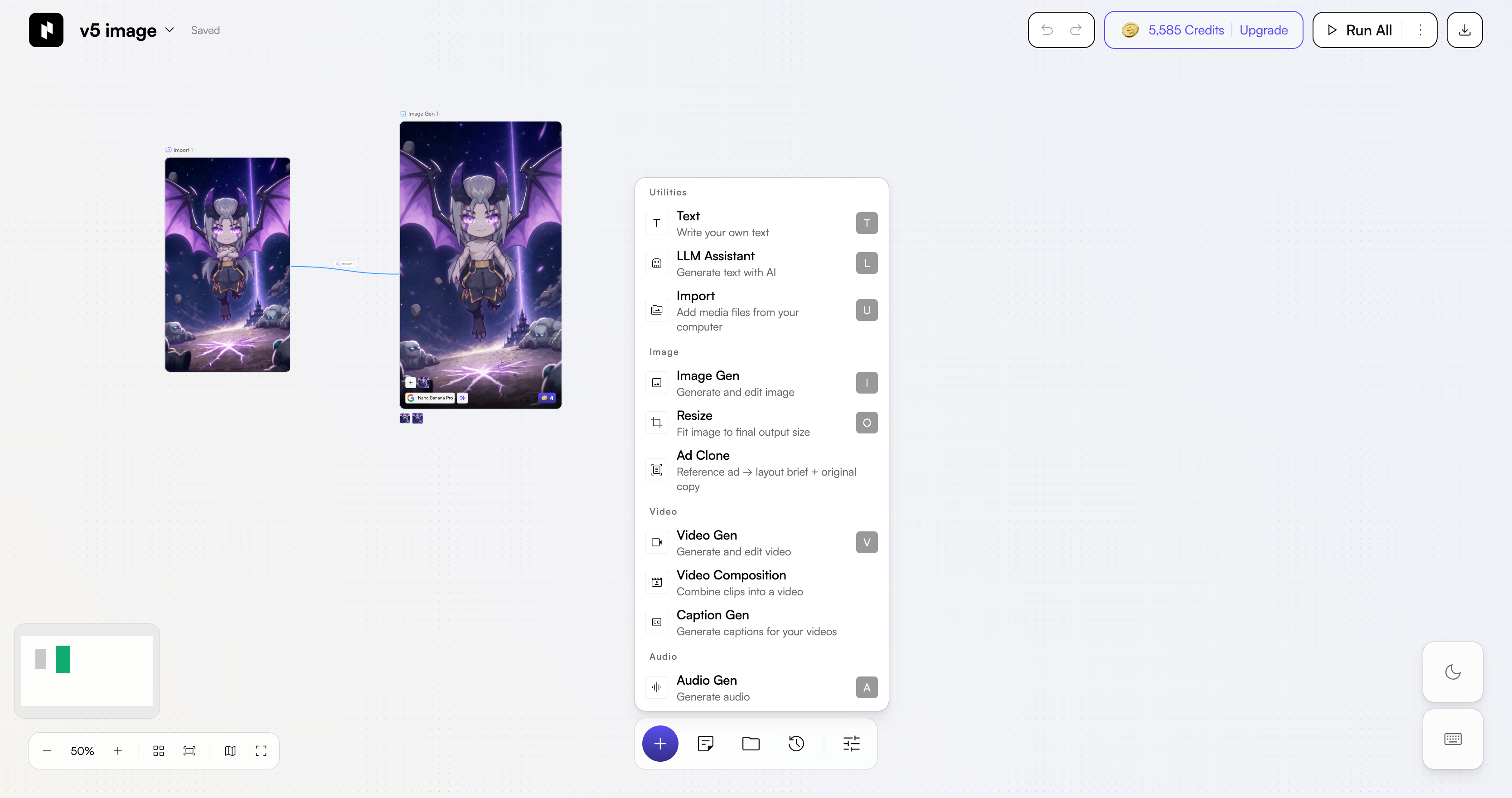
What is Flow Editor?
Picture this: you have a recurring workflow — say, producing an ad. Step 1: pick an image. Step 2: add text. Step 3: resize. Step 4: export.
Flow Editor turns each step into a box on your screen. You drag, drop, and connect the boxes — and the system runs them in whatever order you set. No more doing it manually every single time.
If you're thinking "sounds great but I have no idea where to start" — don't worry. You don't even need to touch the boxes yourself. In the next section, I'll show you how to type a few lines in Chat and let the system build the flow for you. Keep reading.
The Old Way
Do each step manually, across multiple tools. Repeat from scratch every new project.
With Flow Editor
Set up the steps once as a flow. Run it anytime. Tweak any part without rebuilding.
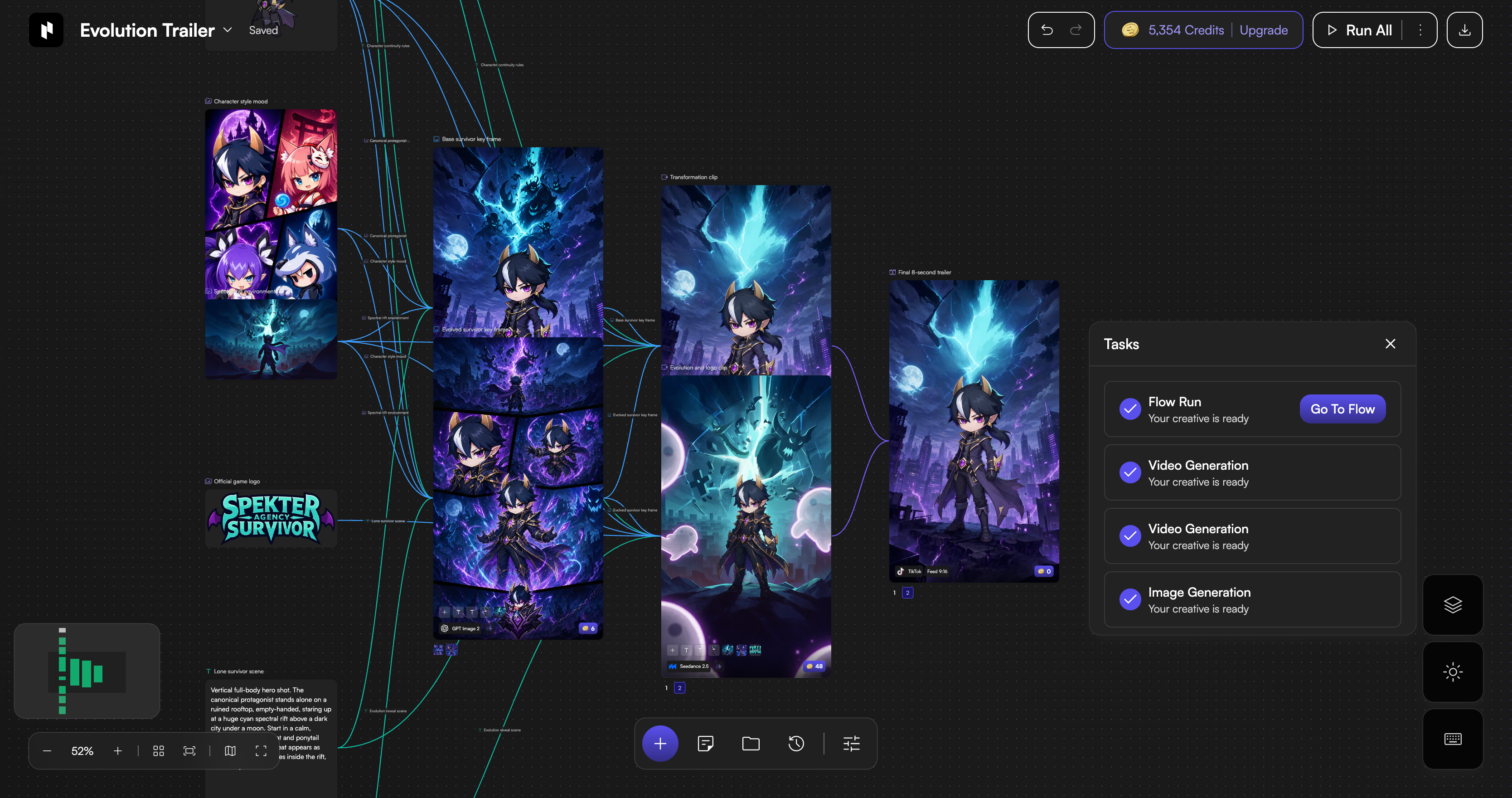
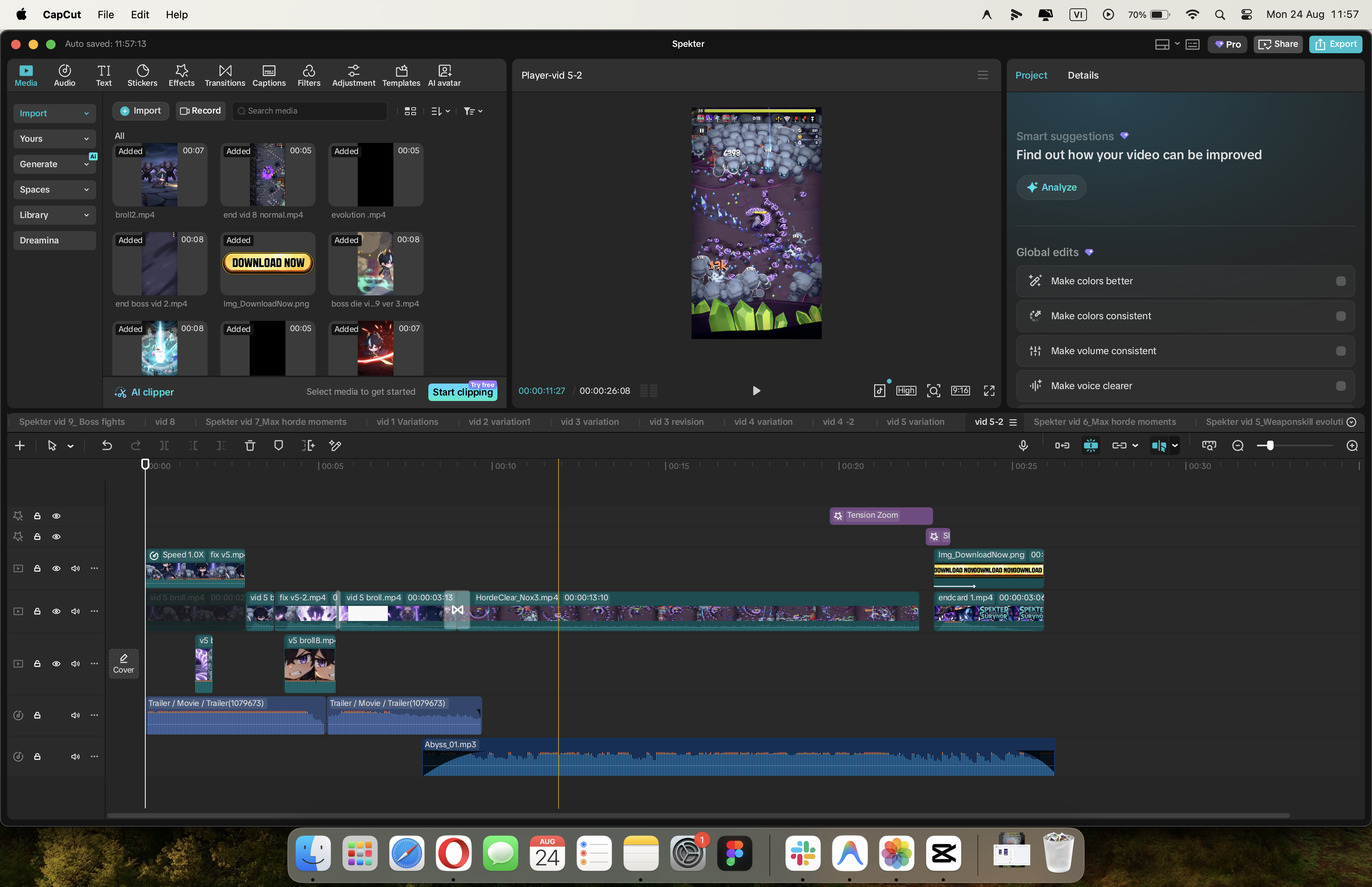
2 Ways to Use Flow Editor
There are two ways to get started. One is fast, one gives you full control. I'd recommend starting with the fast one.
Way 1: Create a Flow via Chat
This is the thing I wish I'd known from day one.
You don't need to open Flow Editor at all. You don't need to know what a node is. Just open Chat, describe what you want in plain language — and the system builds the flow for you.
That's it. The flow appears on the canvas, nodes already connected. Just review and adjust if needed.
Honest confession — I used Flow Editor for weeks without knowing this existed. I was dragging nodes one by one, drawing connections manually, configuring each step from scratch. Until a teammate pointed it out: "Why aren't you just typing it in Chat?"
You don't have to make the same mistake.
When to use Chat:
- You're new and haven't gotten the hang of nodes yet
- You want to prototype fast — from idea to a working flow in seconds
- You know what you want but don't want to build it from scratch
Way 2: Build Directly in Flow Editor
This one's for when you're more comfortable — or when you want full control from the start.
Open Flow Editor → blank canvas → you add nodes, draw connections, and configure each step yourself. Nothing is pre-built. Total freedom.
This was how I started — before I knew Chat existed. It's not a bad approach. In fact, for complex logic or when you need to fine-tune every detail, it's the only way.
But if you're just getting started, try Chat first. Let it build the skeleton, then go into the Editor to adjust. Best of both worlds.
Things I Learned Along the Way
None of these are in any manual. These are the things I wish someone had told me earlier.
1. Import images and videos by dragging them straight in
No need to hunt for an "Upload" or "Import" button. Just drag your file from your desktop directly onto the canvas — Flow Editor picks it up and creates an input node automatically.
Drag an image → get an image node. Drag a video → get a video node. You can drag multiple files at once. Way faster than digging through menus.
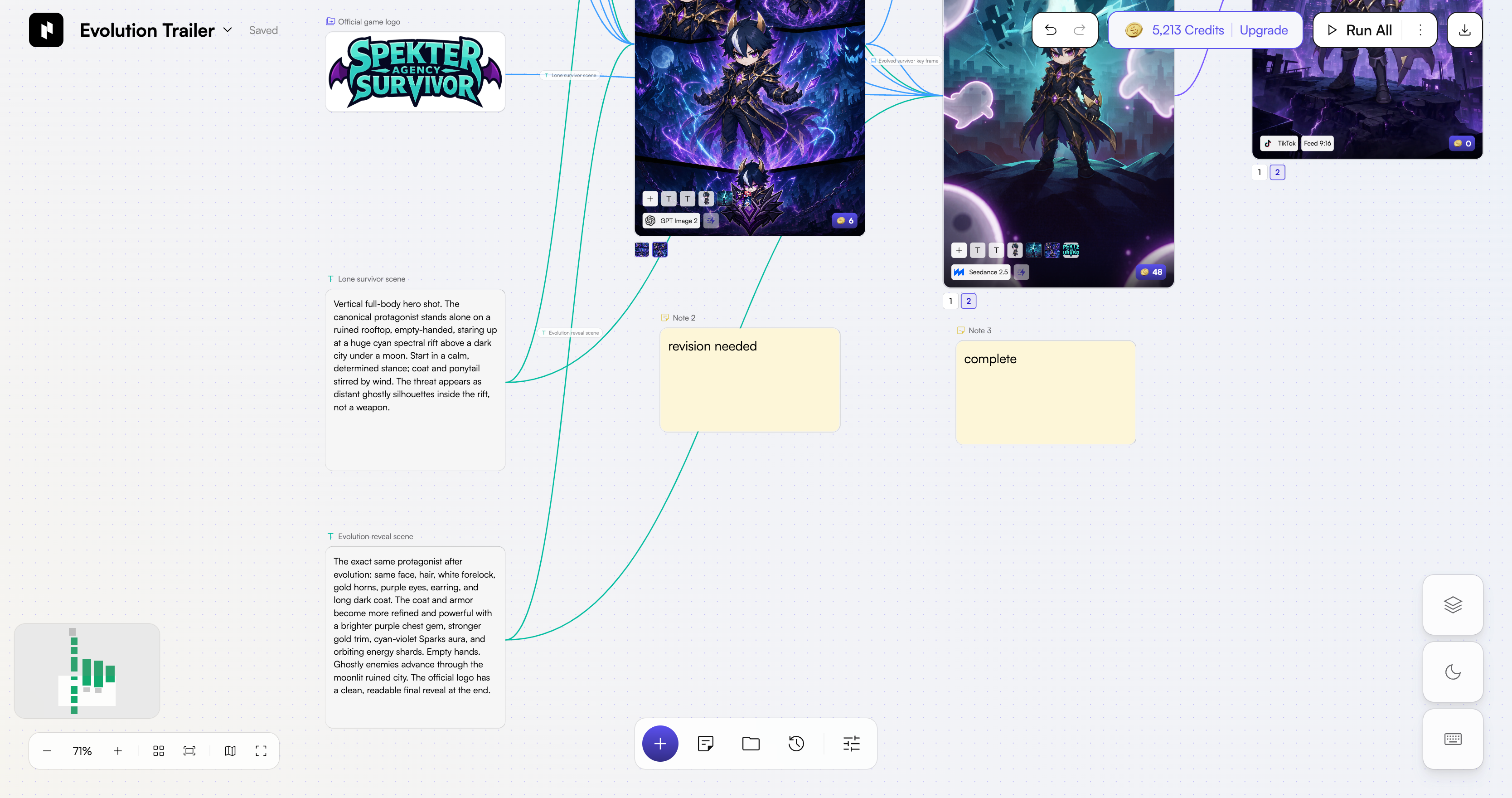
2. Use Sticky Notes to track where you are
Long flows get disorienting fast. Flow Editor has a Sticky Note feature — basically a post-it you pin anywhere on the canvas — to jot down where you are, what still needs work, or to label different sections.
Use it to divide your flow into clear zones. Something like "Input → Processing → Output", each zone with a different color note. Glance at it and you know exactly what's going on — no need to read every node.
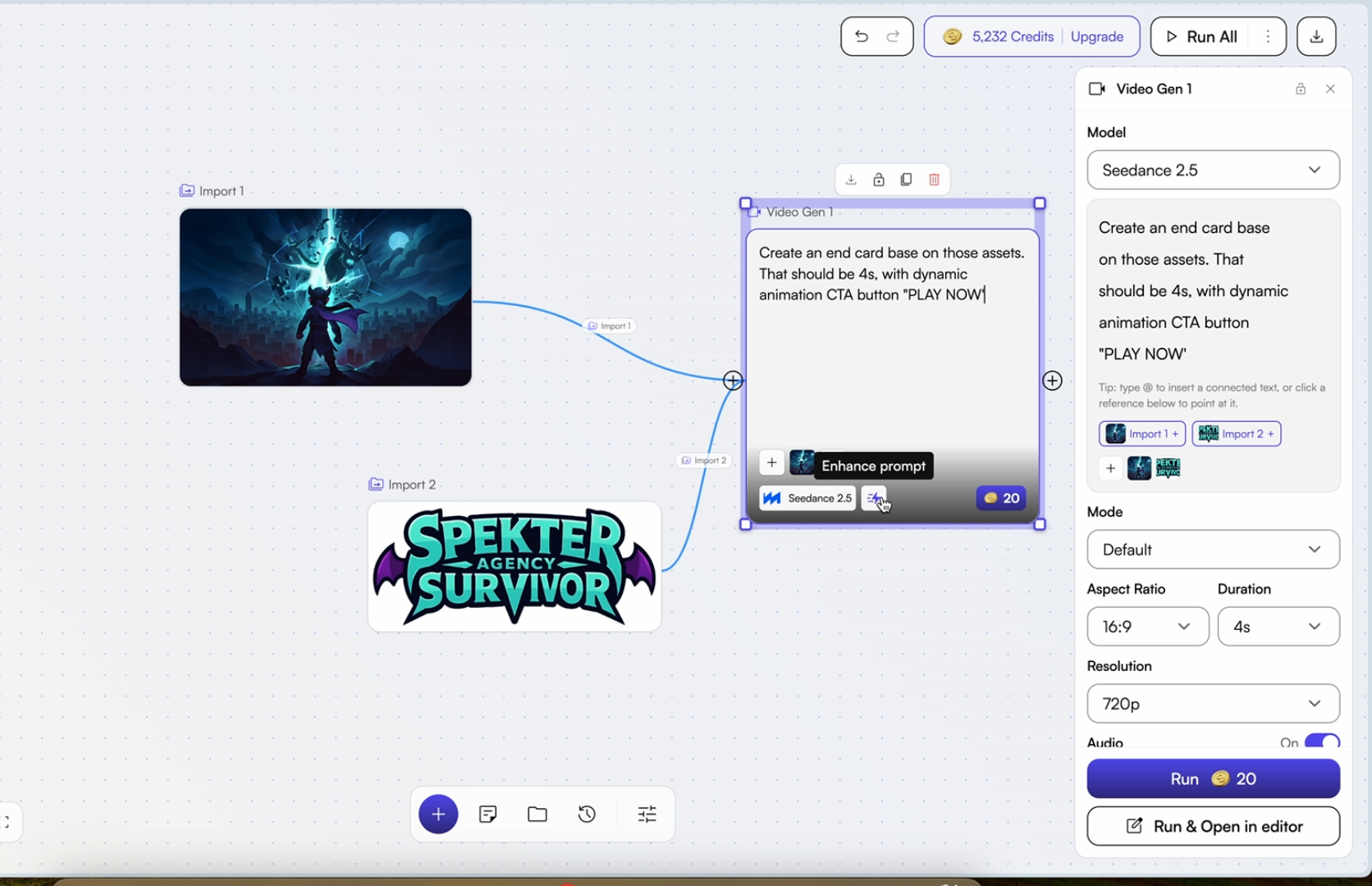
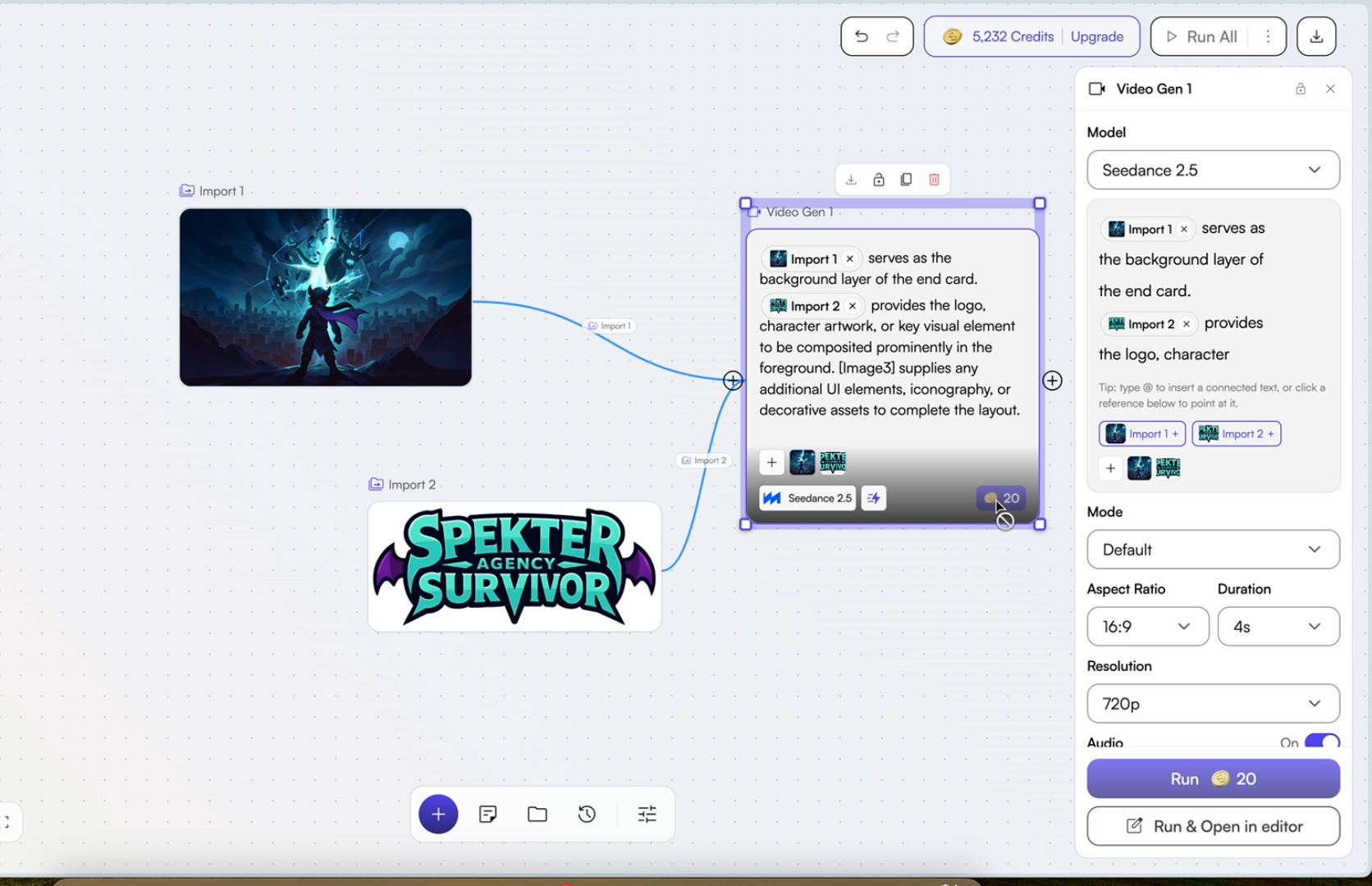
3. Use Enhanced Prompt to get better AI outputs
When filling in a prompt for an AI node, you can turn on Enhanced Prompt — the system will automatically improve your phrasing before sending it. Like having someone clean up your prompt for you.
Most useful when you know what you want but aren't sure how to say it in a way the AI will understand. Type your rough idea → toggle Enhanced Prompt → let the system do the rest.
4. Pick the right mode in Seedance 2.5
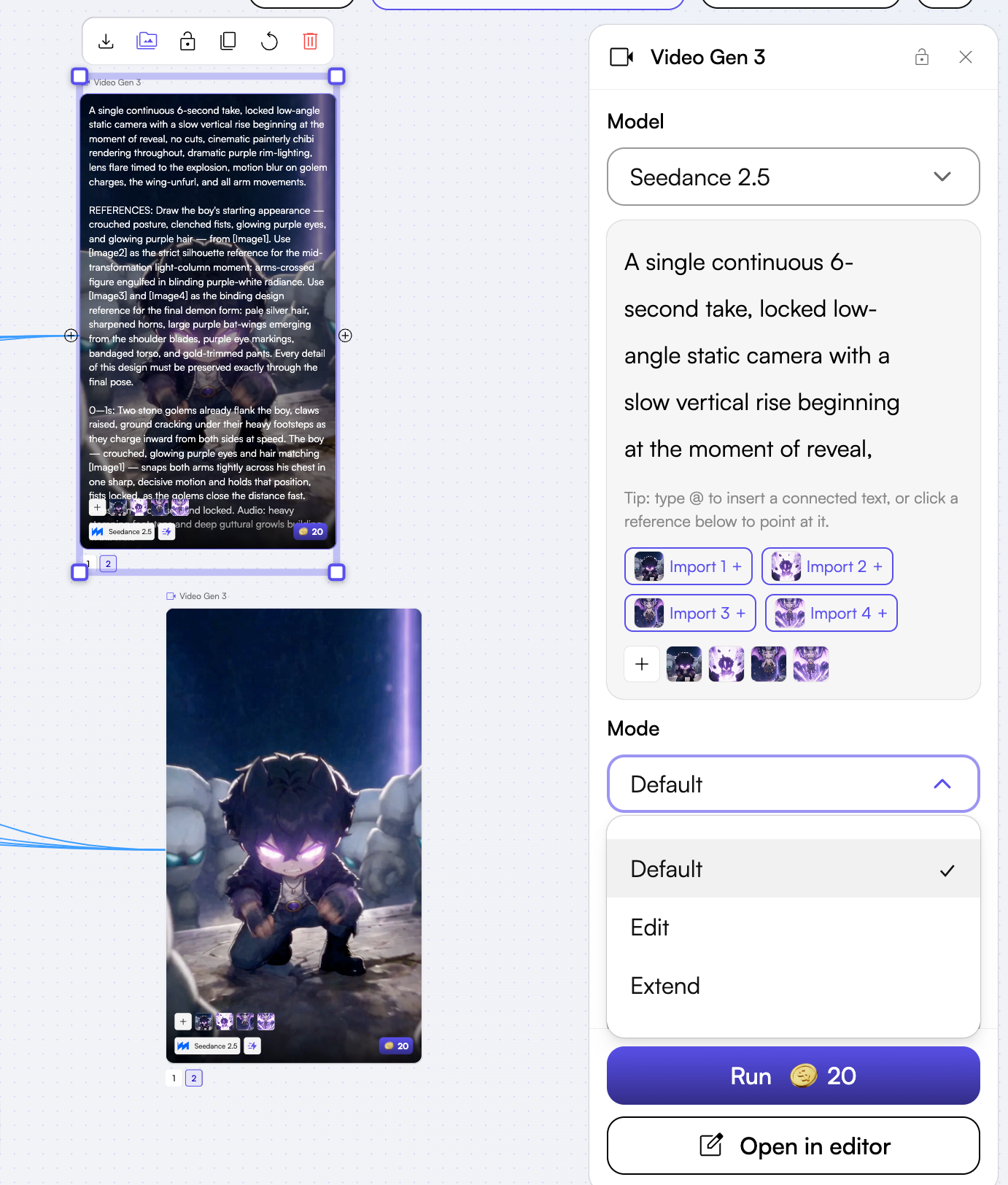
Seedance 2.5 has two modes: Edit Mode and Default Mode — and choosing the wrong one will get you completely different results.
Default Mode: Generates a video from scratch based on your prompt. Use this when you want to create something new.
Edit Mode: Modifies existing footage based on your prompt. Use this when you already have a clip and want to change part of it — add effects, shift the style, or adjust specific details.
If the output isn't what you expected — check which mode you're in before running it again.
That's It
Flow Editor isn't for everyone. Maybe you'll try it and go back to doing things manually. That's completely fine.
But if you haven't tried it — give it one shot. Open Chat, type out a workflow you do all the time, and see what it generates. Takes less than 30 seconds.
You might go back to doing it manually. You might not.