Creating Shin Ramyun UGC Videos
A simple step-by-step guide showing how easily Nongshim Global can create authentic, high-performing UGC-style videos entirely inside the PLAYAD platform, using natural chat conversations.
Cozy POV Direction
This format focuses on a warm, personal atmosphere with a close-up, first-person cooking experience. Perfect for connecting with viewers seeking comfort food inspiration.
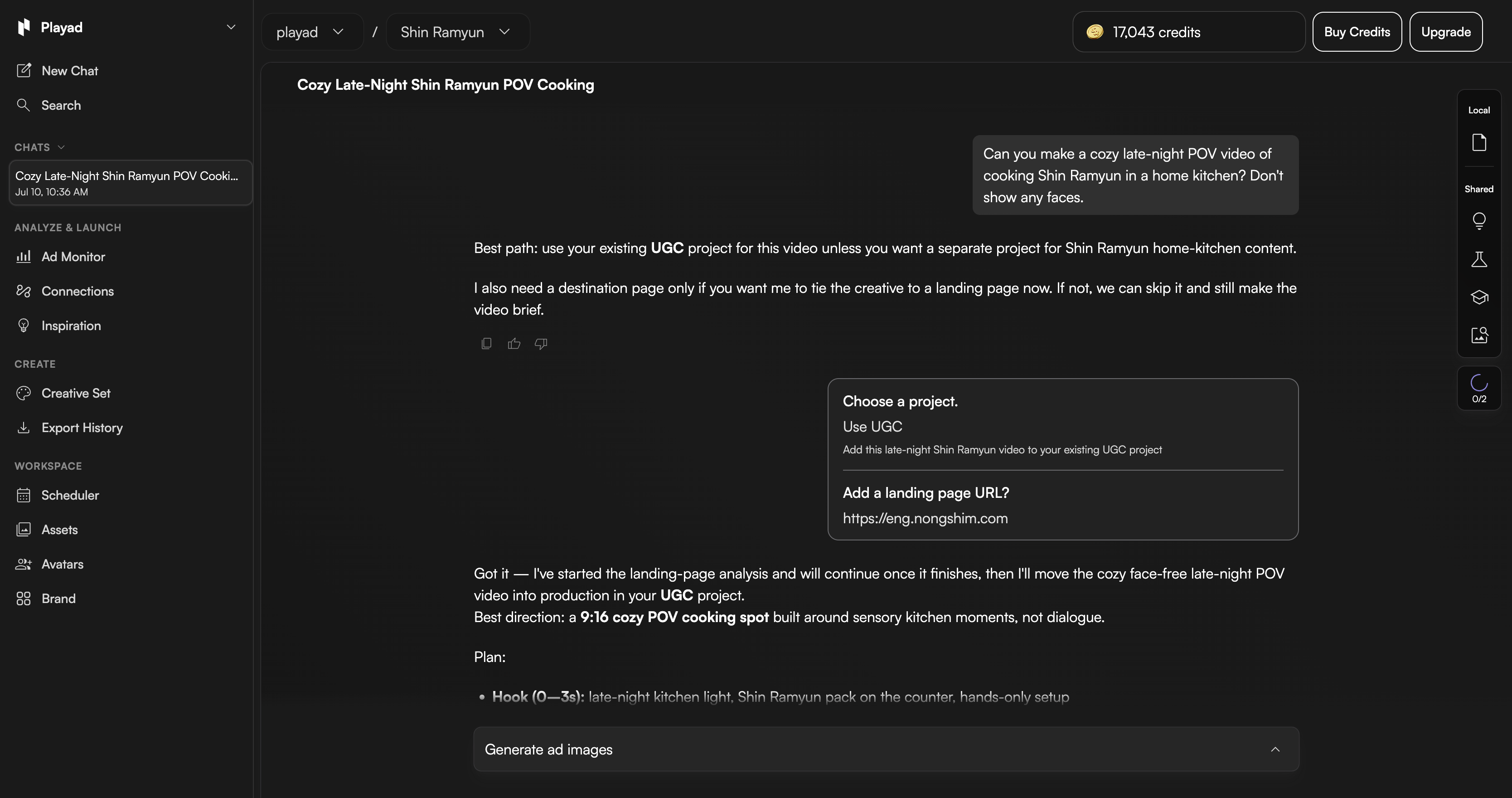
Start with a Simple Prompt
Type your video idea in natural language in the chat window, just like talking to a friend. Mention key settings like "cozy late-night", "home kitchen", and style parameters like "no faces".
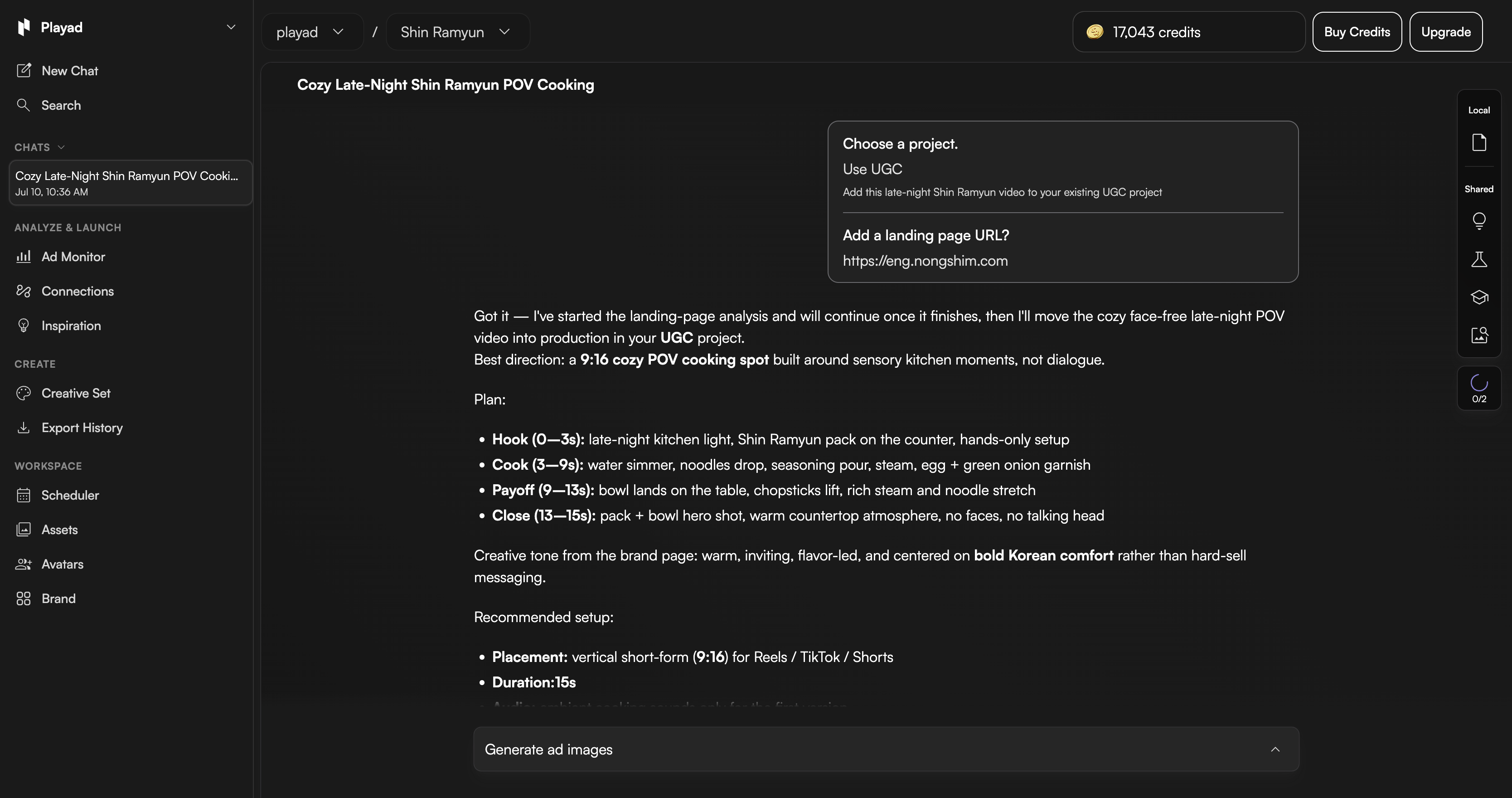
Get a Detailed Storyboard Plan
The AI automatically analyzes your landing page brand guidelines and outlines a structured 15-second visual plan (Hook, Cook, Payoff, Close) to ensure the content meets marketing goals.
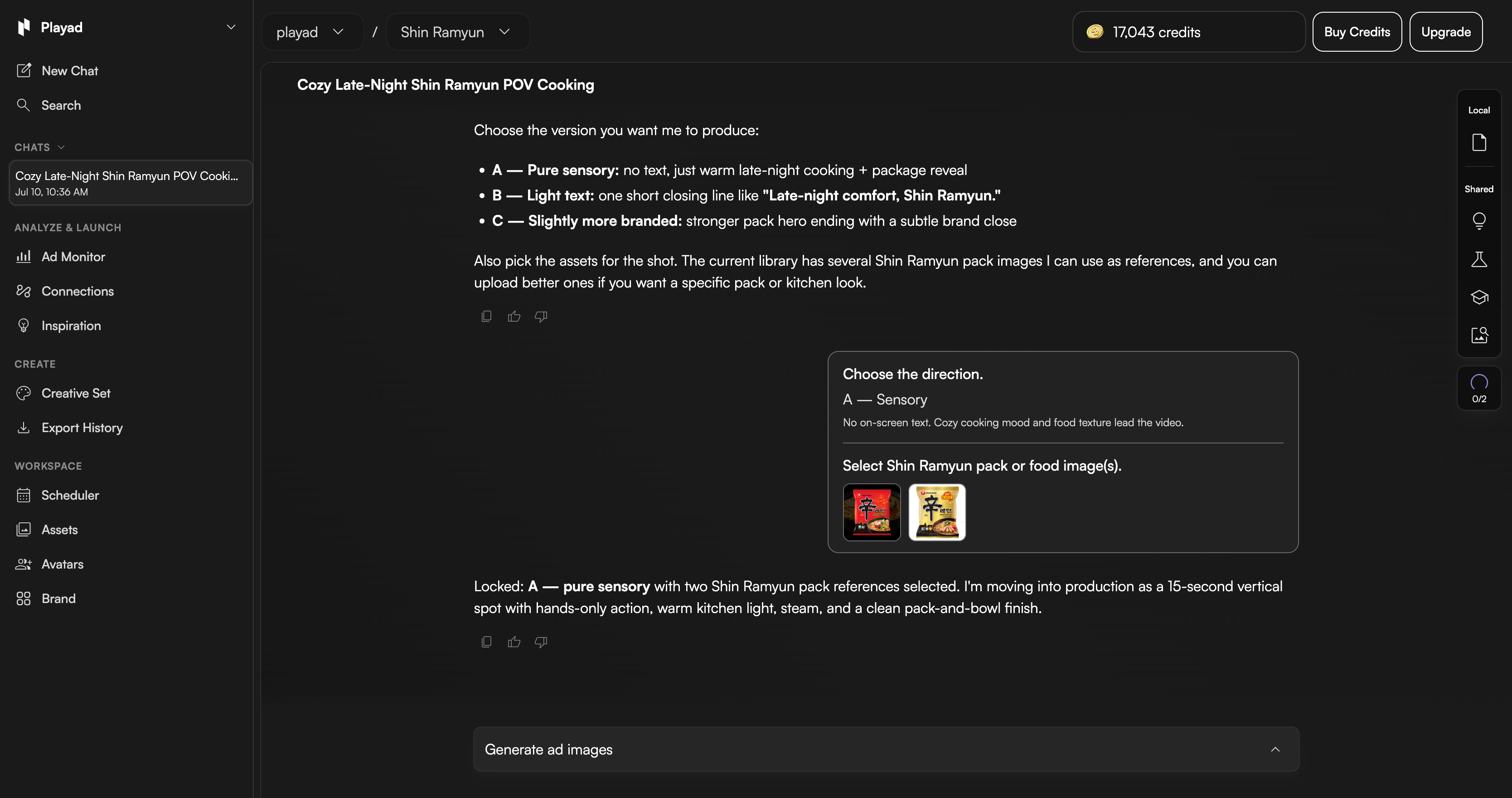
Select Style & References
Choose the version you want to produce: Pure sensory (no text), Light text, or Branded. You can also select the reference product packaging to lock the branding.
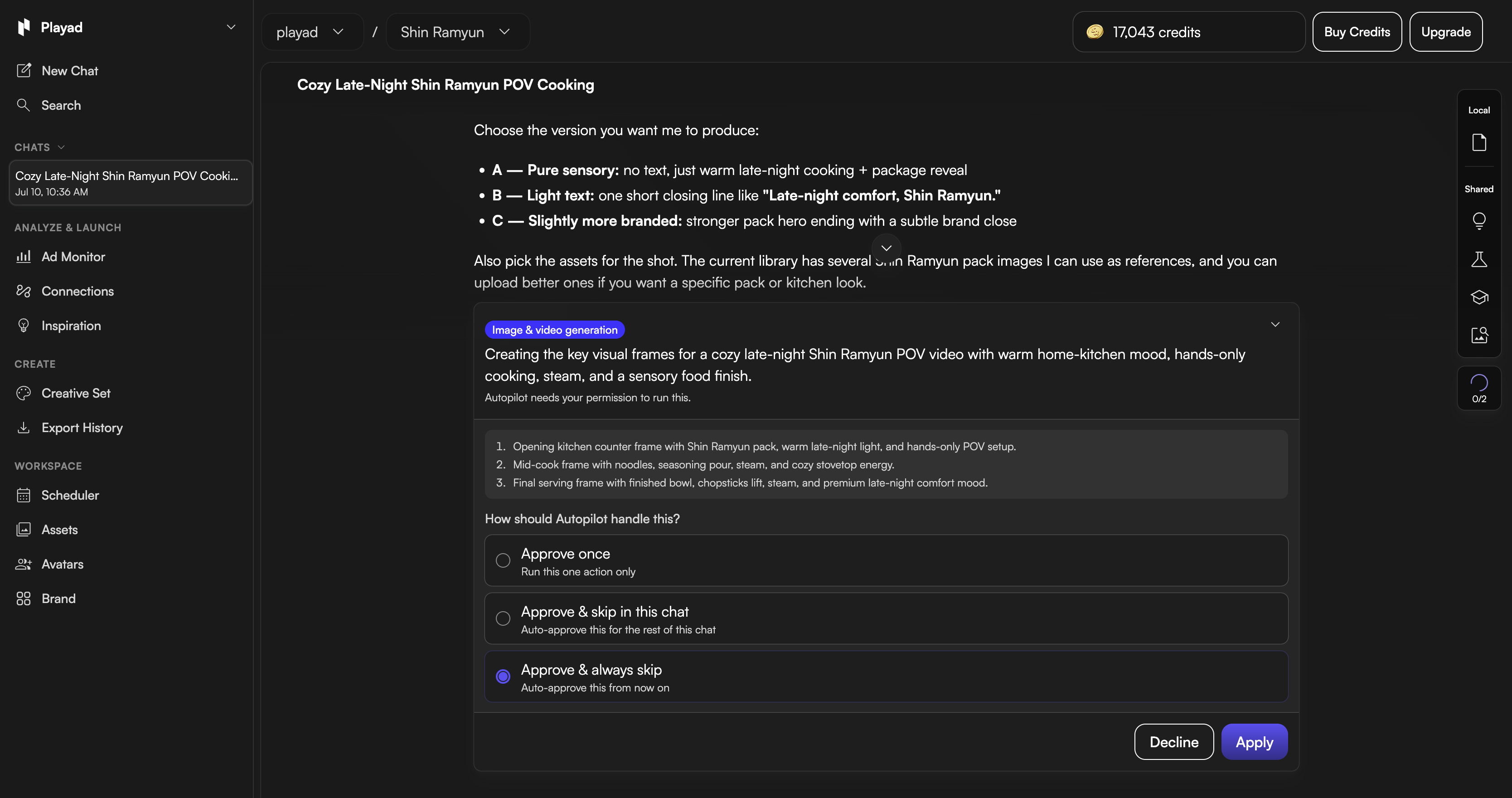
Approve Generation
Confirm the visual layout, choose whether you want to auto-approve upcoming generations, and hit Apply to begin production.
Automatic Production
PLAYAD's Autopilot begins generating the visual elements. You can track progress in real-time under the "Tasks" panel in the lower right corner.
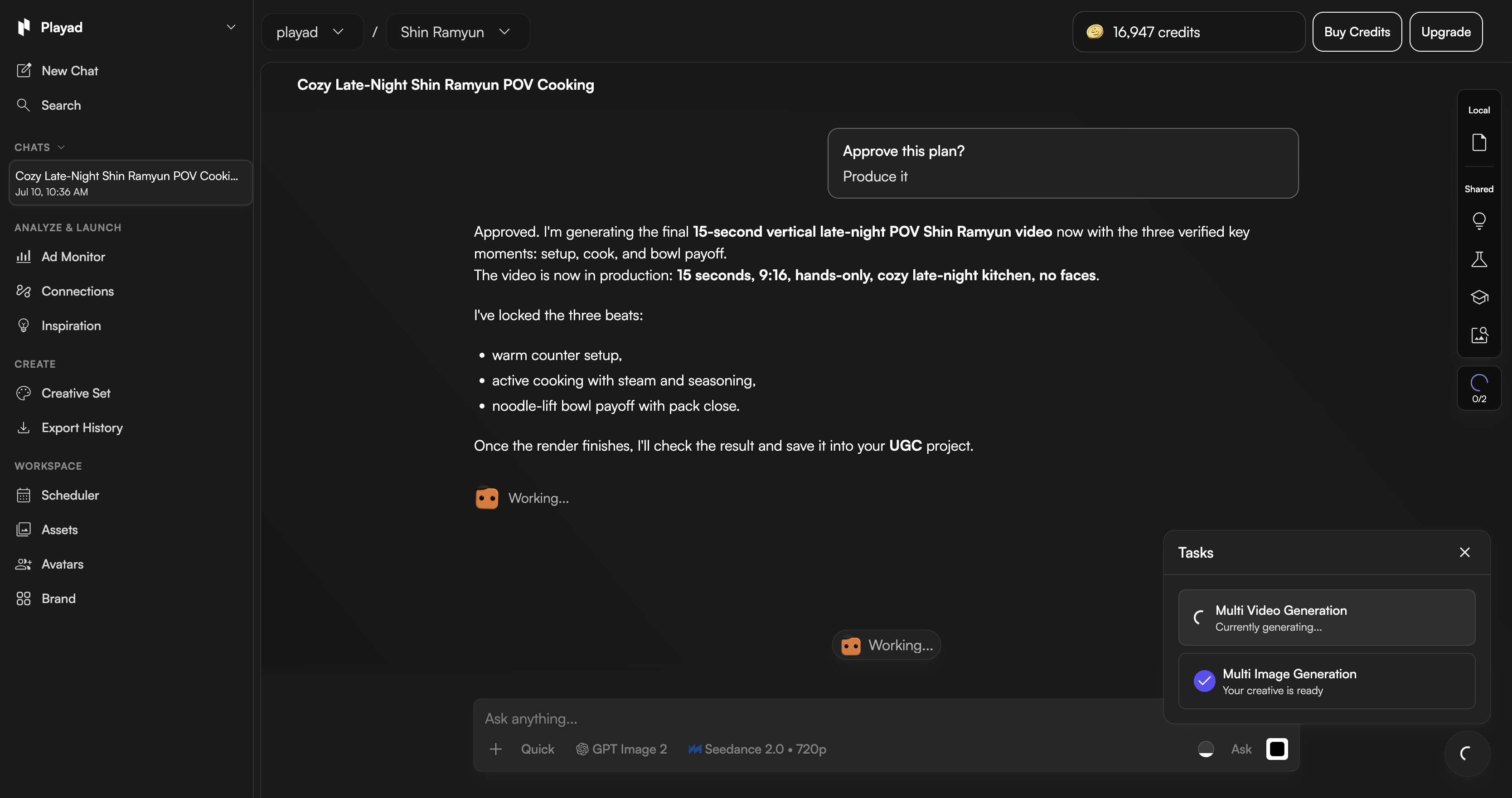
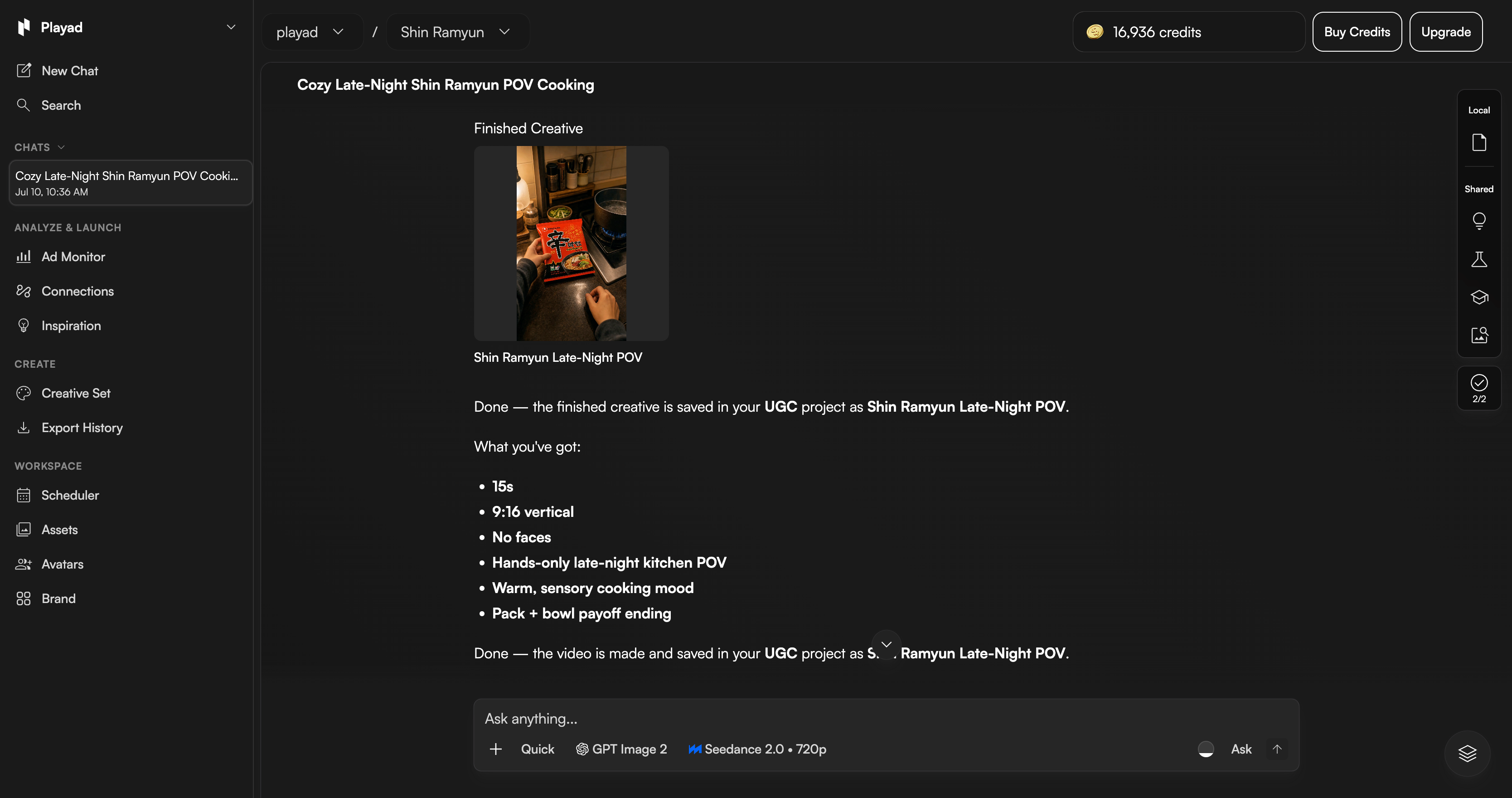
Review the Finished Creative
The video is fully compiled and saved automatically to your UGC workspace, complete with all targeted sensory hooks.
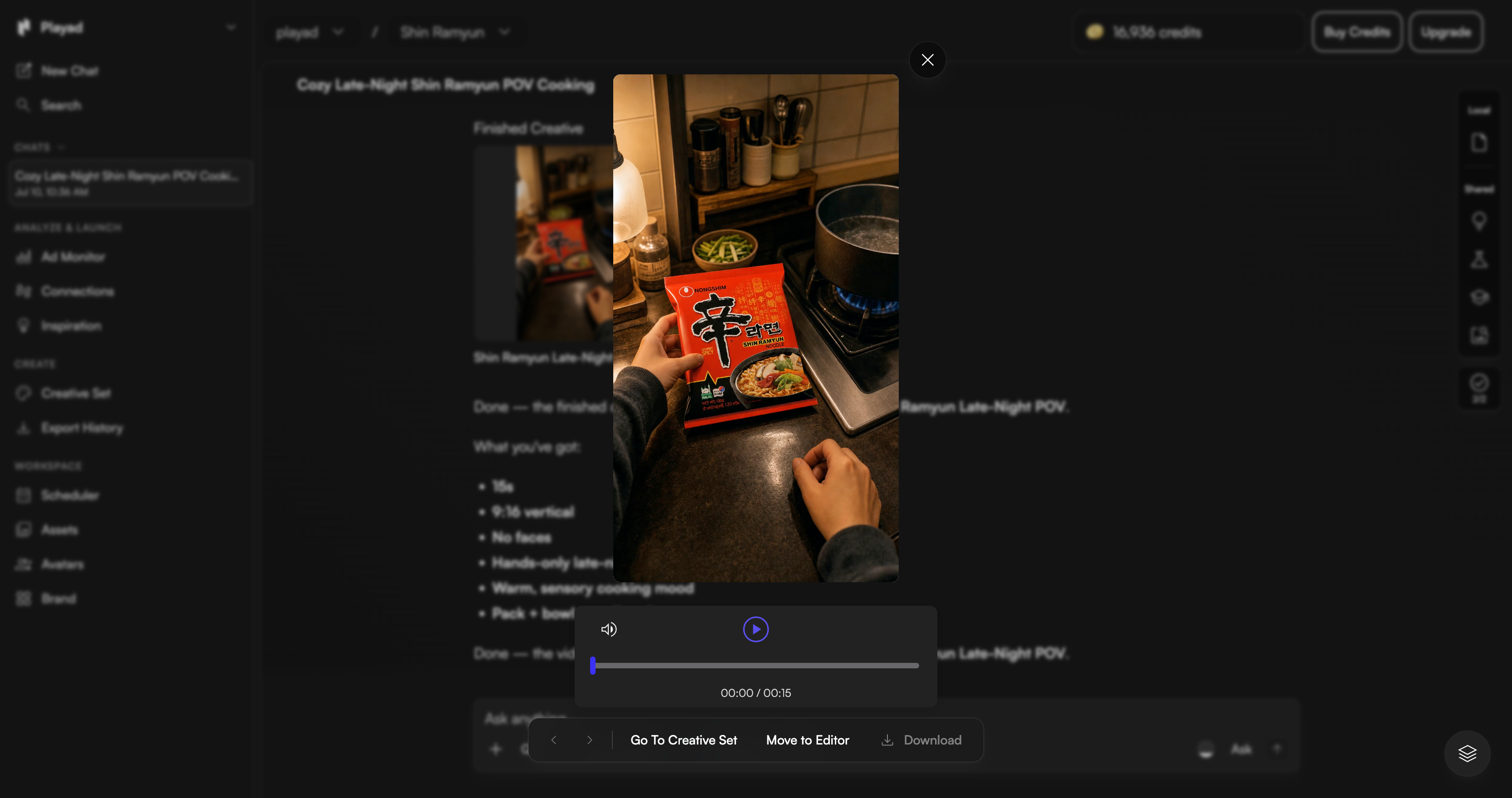
Preview & Play
Open the preview player to watch the video. From here, you can download it directly, move it to the timeline editor for more adjustments, or publish.
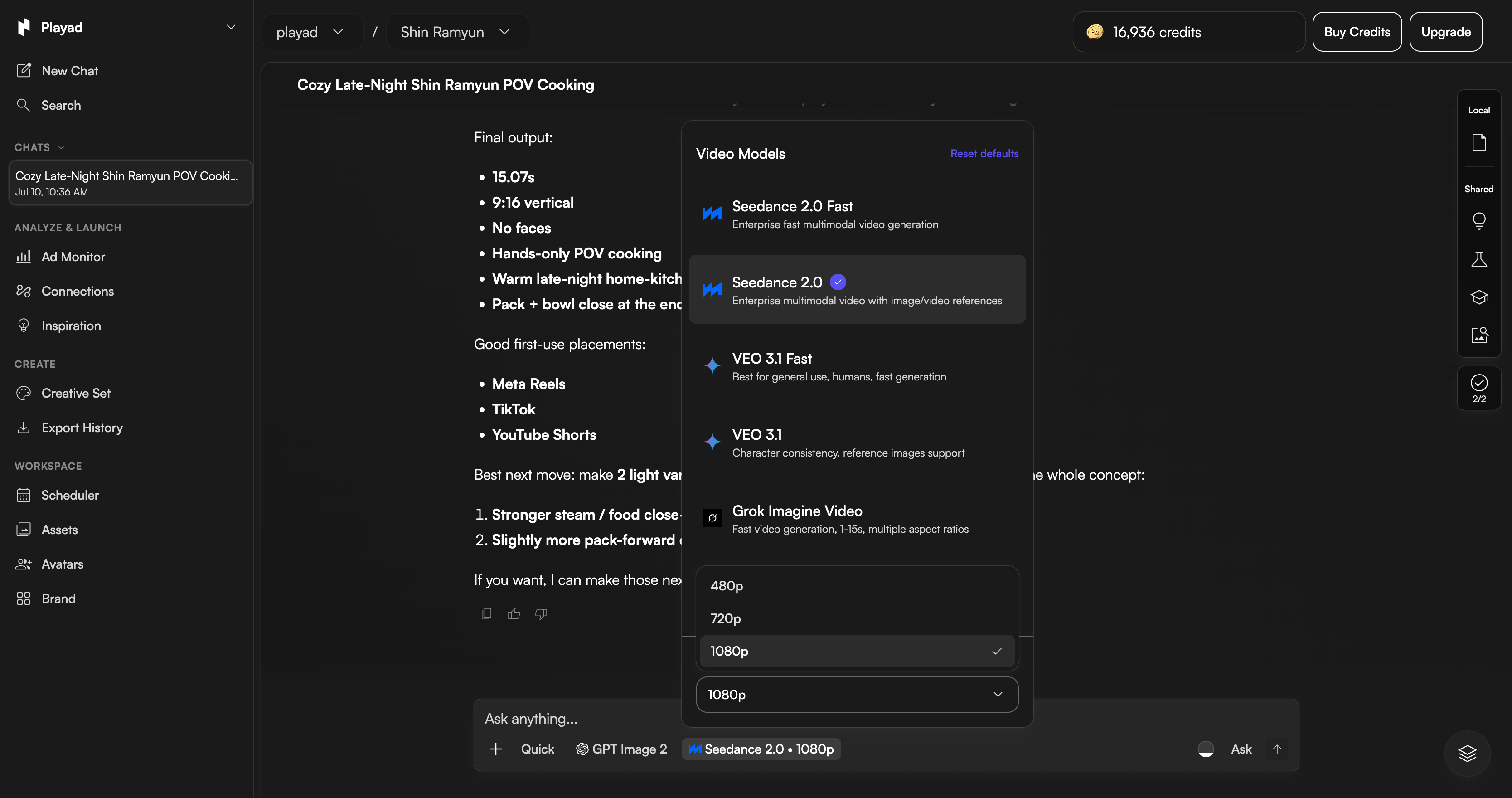
Fine-tune AI Video Models
For advanced control, choose between different generation models (like Seedance 2.0 or VEO) and adjust resolutions (480p, 720p, or 1080p) to match your workflow.
Cozy POV Outputs
Hack & Recipe Tutorial Direction
Provides clear, lo-fi step-by-step guidance on creating famous viral ramen hacks. This format follows the exact same simple chat workflow but focuses on food customization.
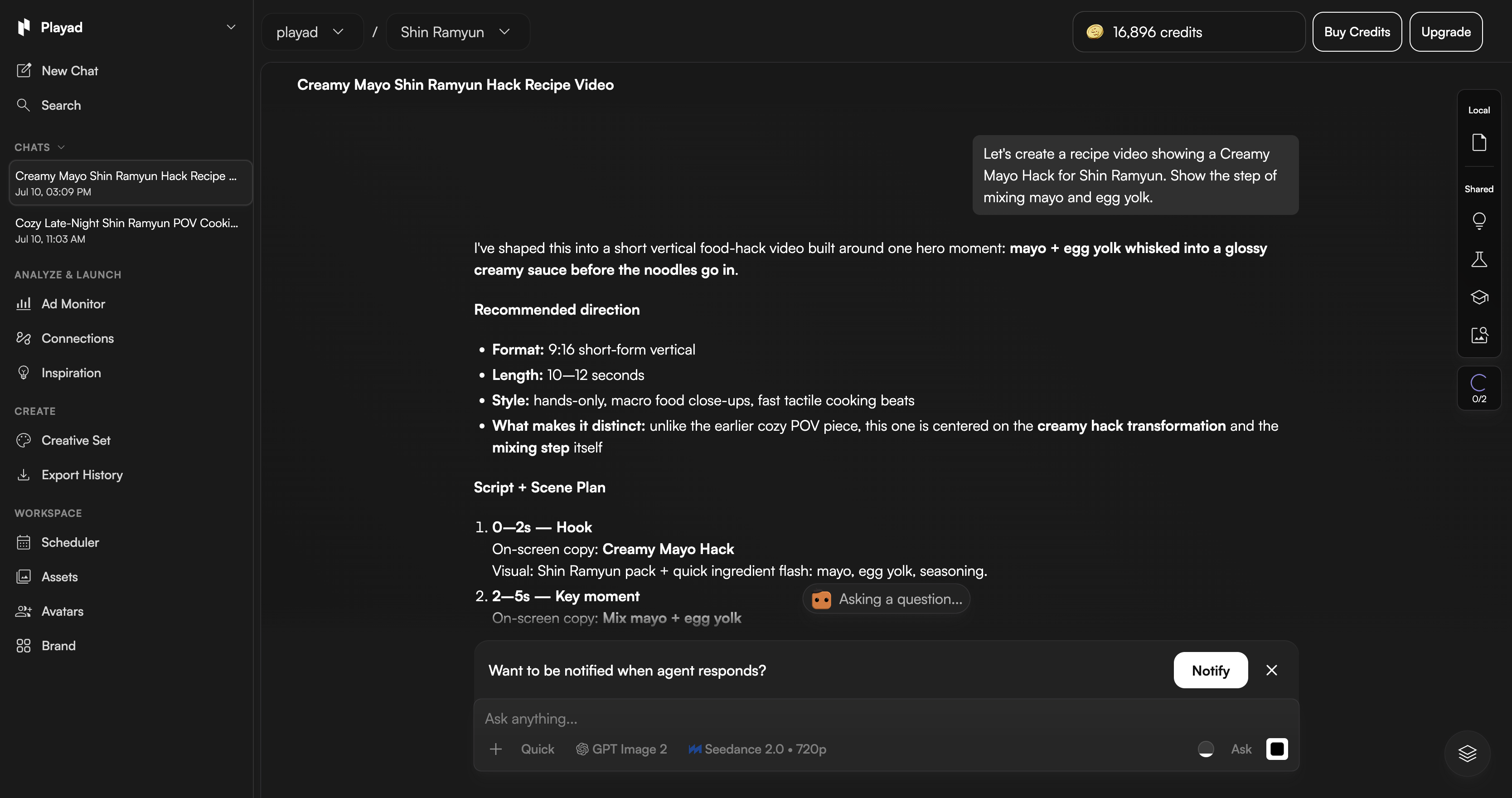
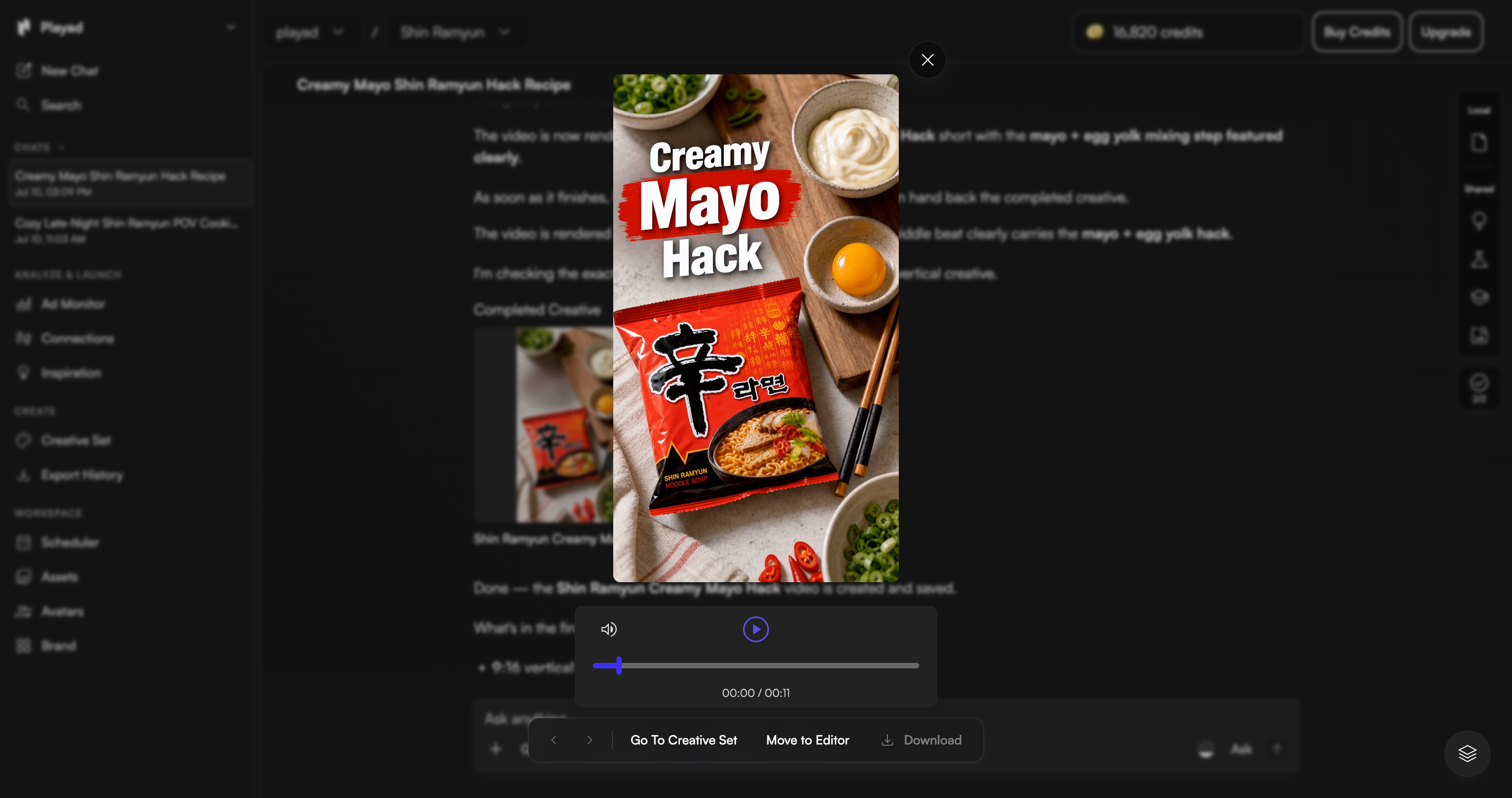
Hack & Recipe Outputs
Professional Customization in the PLAYAD Editor
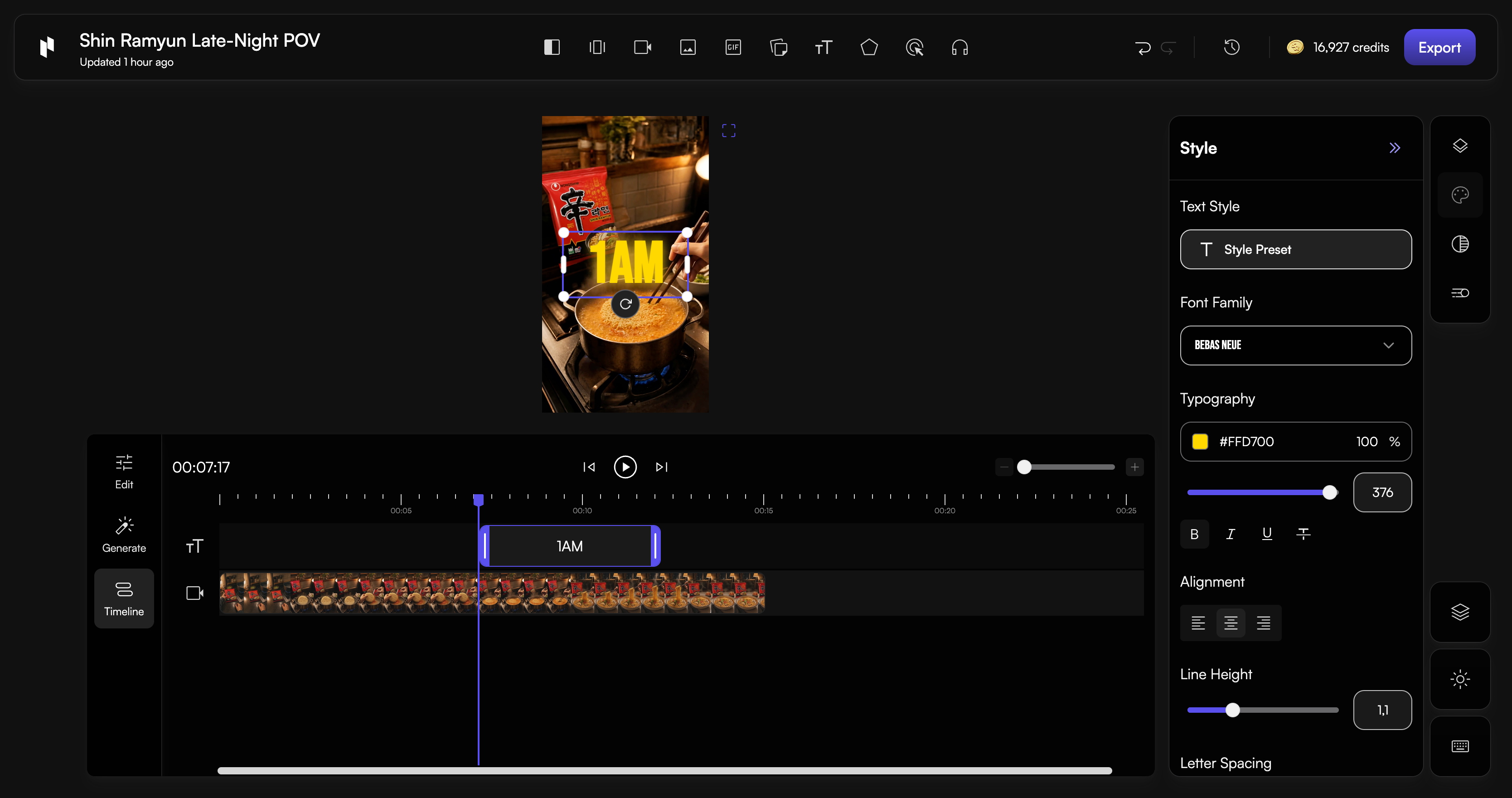
While the chat AI builds perfect ready-to-use drafts, you can unlock full creative control by clicking "Move to Editor". PLAYAD houses a complete, professional timeline space built natively in your browser. It feels familiar and intuitive, giving you the power of dedicated desktop editing suites without downloading a single file.
Flexible Editing Options
You can configure and customize different components of the video in any order you prefer:
Add & Format Text Layers
Easily place custom text layers on top of your video tracks. Double-click the text on the preview monitor to edit. From the right panel, you can customize fonts (like Bebas Neue), text color, sizes, alignment, and spacing to match your brand style guidelines.
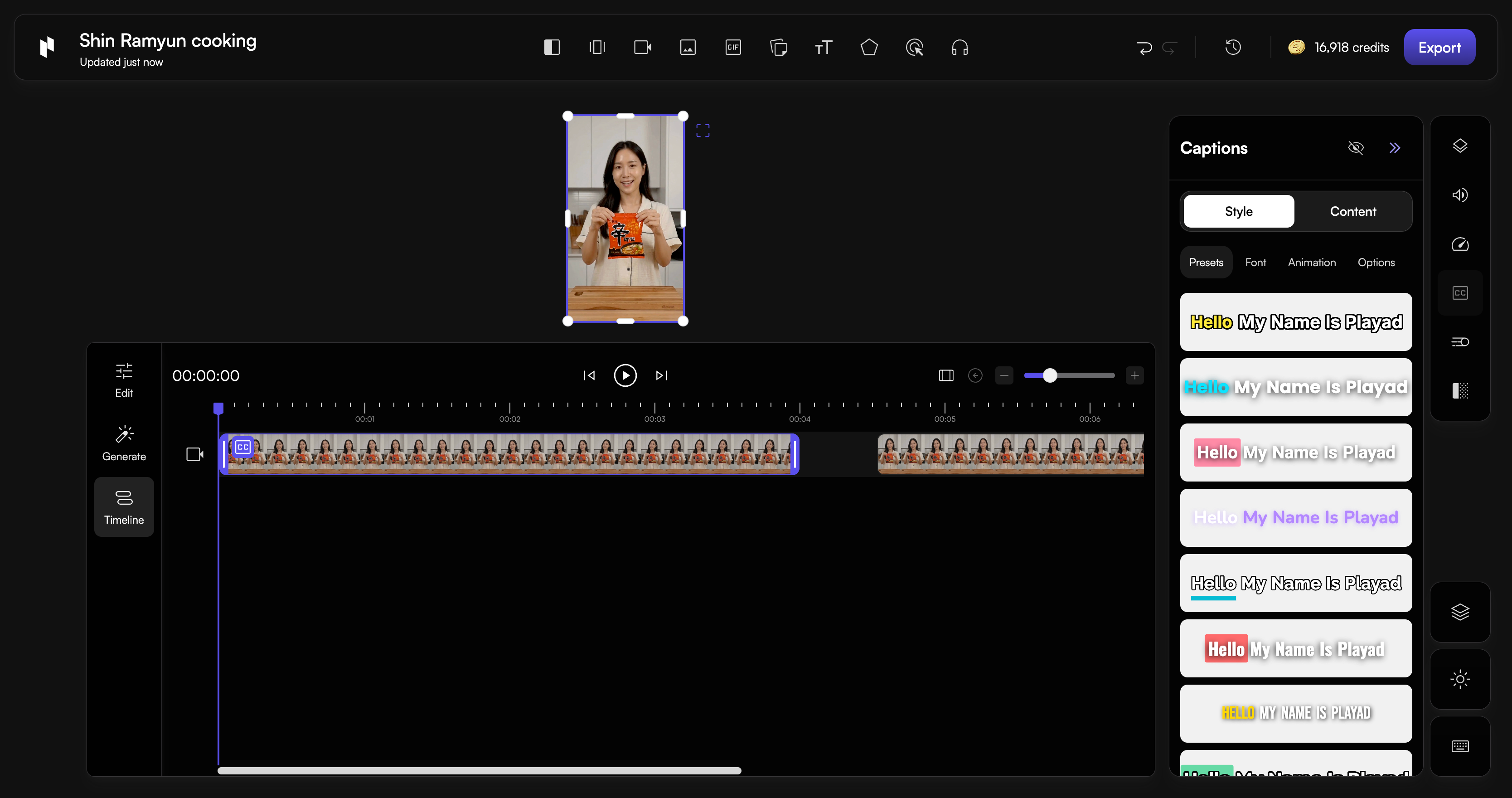
Apply Style Presets
Apply designer-made style presets to style text overlays instantly. Change colors, borders, and backdrops in one click using visual presets without having to customize parameters one by one.
Add Animations
Apply dynamic motion paths to text overlays. Adjust transition durations on the timeline to sync them with cuts, ensuring captions fade or slide in at the exact right moment.
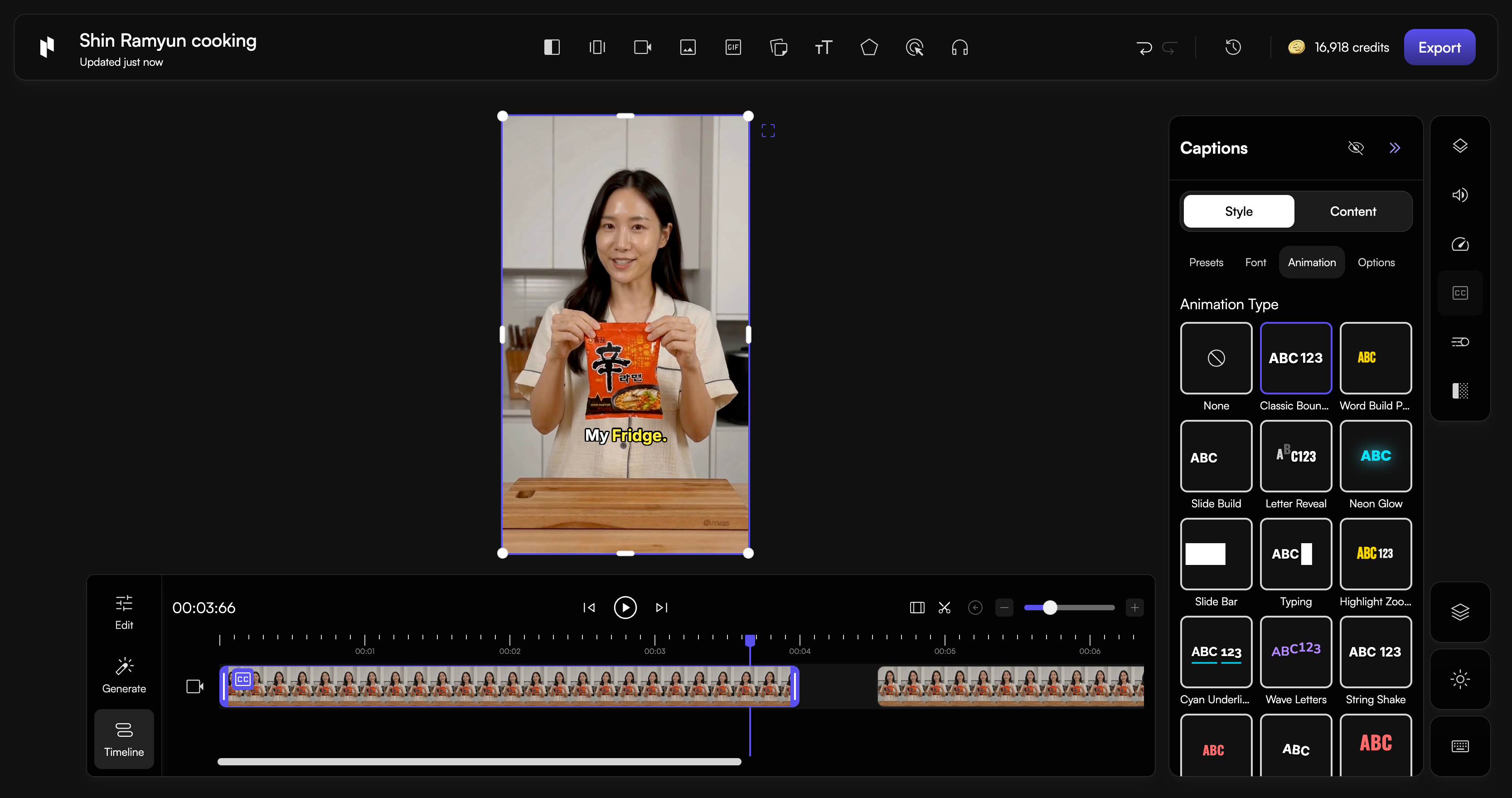
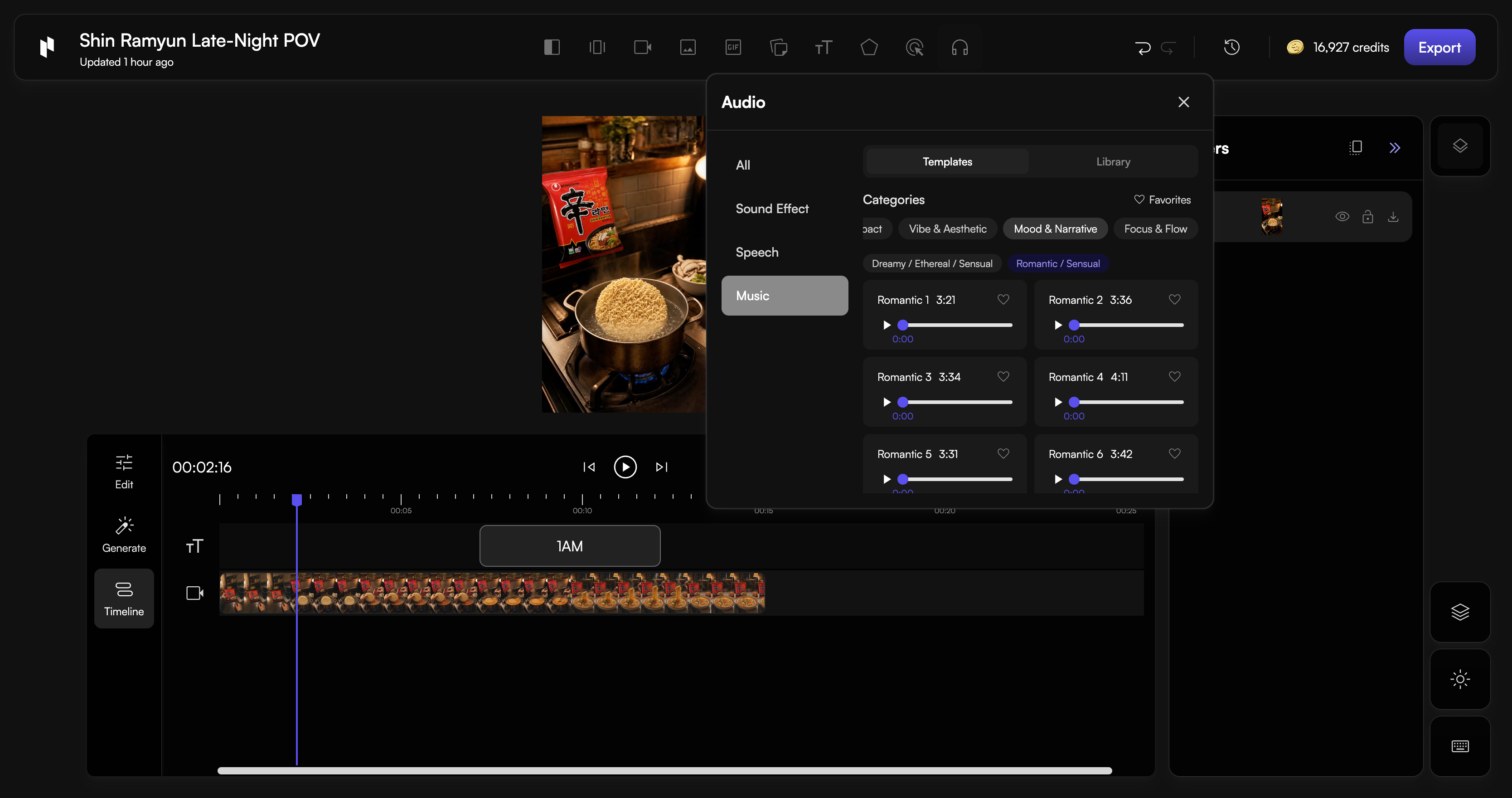
Layer Music & Audio Tracks
Upload and layer background tracks, ambient soundscapes, or voiceovers onto the multi-track timeline. Control individual volumes, add fade effects, and cut audio tracks to sync with the visual shifts.
We recommend testing your prompts and keywords in 480p resolution first before generating the final high-quality versions. That way, you can quickly see which prompts and keywords work best without burning credits on full-res renders. Once you find a winning prompt layout, simply run it at full quality. This saves a lot of credits and helps you quickly identify what works and what doesn't.